

Your doorbell camera can show you who is on the porch from anywhere in the world. The same connection can give a stranger access if you skip a few basic steps. Smart home security works well when the setup is careful, and it works poorly when devices are installed in a rush with factory settings still in place.
Smart home security covers cameras, video doorbells, door locks, motion sensors and alarm hubs that connect to the internet and to a phone app. Adoption is climbing. Parks Associates reports that 45% of US internet households now own at least one smart home device, roughly five times the share from a decade ago. SQ Magazine estimates that about 35% of Americans aged 12 and older own a smart speaker, which is roughly 100 million people. Every new device adds an account, a password and a network connection that someone could target.
This guide walks through the steps that matter most. You will learn how to secure your accounts, protect your Wi-Fi router, set up each device safely, choose products with a credible security record, and keep everything updated.
Smart Home Security Guide: Start With Your Accounts
Your smart home accounts control the locks, cameras and alarms in your house. Treat them as the front door to everything else. Many owners protect their main email login carefully but forget the apps that unlock doors or stream live video.
Create a unique password for every device account. A password manager can generate long, random passwords and store them for you. When one password is reused, a breach at one service can expose every device that shares it. Attackers test leaked passwords across many services, so reuse is one of the easiest paths into a home network.
Turn on two-factor authentication wherever it is offered. This applies to Google Home, Apple Home, Amazon Alexa, Samsung SmartThings and any camera or lock app you use. The Cybersecurity and Infrastructure Security Agency (CISA) recommends multi-factor authentication for connected devices because it stops most attackers who have only a stolen password. Use an authenticator app when possible, since text message codes are weaker than app-based codes but still better than no second step.
Review who has access. Smart home apps often let you invite family members, housekeepers, dog walkers or short-term guests. Remove anyone who no longer needs access, and check the list every few months. Each person with an active login is another possible weak point, and old guest accounts are easy to overlook.
Why Smart Home Security Needs Extra Attention
Smart devices differ from laptops and phones in one important way. Many of them receive fewer updates, run simpler software and sit on your network for years without anyone looking at them. A camera mounted in a hallway may stay connected long after the app stops getting new features.
Researchers have repeatedly found that cheap connected devices ship with weak credentials or software flaws. Government advice focuses on the same core problems: default passwords, missing updates and poor network separation. Once one device is compromised, it can be used to probe other devices on the same network.
Setup is the stage where most problems begin. Parks Associates’ 2026 Smart Home and Security Tracker found that 52% of do-it-yourself smart home users ran into setup or connection problems. Under pressure to get a device working, people often skip password changes and privacy settings. The fix is simple: treat setup as a security task, not only a connection task.
Secure Your Wi-Fi Router First
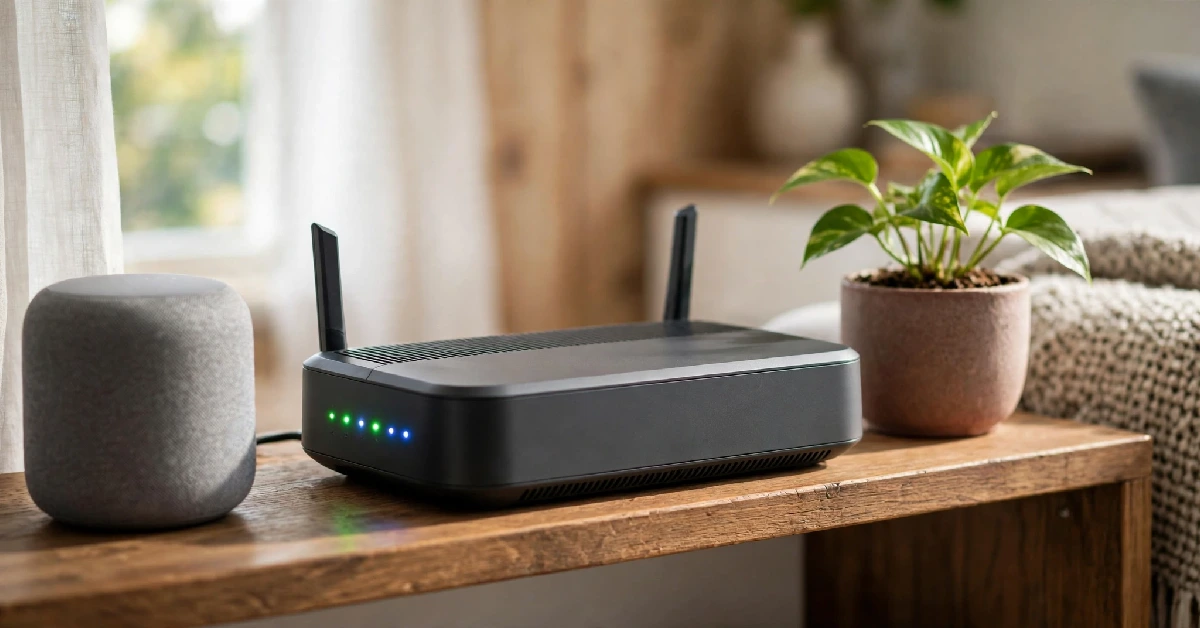
Your router connects every smart device in your home, so its settings carry the most weight. Start by changing the administrator password on the router itself. Many routers ship with simple logins that are published online. Changing only the Wi-Fi password leaves the control panel open to anyone who joins your network.
Choose a long Wi-Fi password and enable WPA3 encryption if your router supports it. If it does not, use WPA2 at a minimum. Check your router’s app or web panel for firmware updates, and turn on automatic updates if the option exists. Routers often run for years without attention, so set a reminder to check them twice a year.
Disable remote management unless you need to reach your router from outside your home. Remote access is a common target because it allows control from anywhere on the internet. Similarly, switch off Universal Plug and Play (UPnP) if your devices do not need it, since UPnP lets devices open network ports without asking you first.
Many routers offer a guest network or device isolation feature. Put cameras, plugs and speakers on a separate network when your router allows it. Security guidance from government agencies often recommends separating internet-connected devices from work computers and phones. If a camera is compromised, the attacker then has a harder time reaching the laptop that holds your tax files.
Lock Down Each Device Setting
Default settings are built for easy setup, not maximum protection. Change them before you rely on a device for security.
Replace the default device password during setup. Factory passwords are widely listed online and offer no real protection, so choose a long, unique password for each device and store it in your manager. Do not use your street address, pet name or birthday.
Review the features you do not use. Turn off remote access if you only need the device at home, and disable any voice purchase or guest sharing options you have never used. Each extra feature is one more setting that could be misconfigured or exploited.
Check your privacy settings with the same care. Cameras and doorbells may upload clips to the cloud by default. Decide whether you want cloud storage, local storage or both, and confirm who can view footage. Shared family accounts often give more people access to live video than the owner intended. Also check whether the company uses footage to train its own systems, and opt out if you prefer not to share.
Finally, place cameras with privacy in mind. Avoid pointing a camera into a neighbour’s window or a shared hallway, and check local rules on recording audio. A camera that catches the wrong view can create legal and neighbourly problems even when the device itself is secure.
Choose Products With Solid Security Records
Security should shape what you buy, not only how you configure it. Before purchasing, check whether the manufacturer offers two-factor authentication, encrypts data sent to and stored in the cloud, and publishes a clear policy for security updates. Look up how many years the company promises to support the product. A device that stops receiving updates after two years becomes a long-term risk.
The UK’s Code of Practice for Consumer IoT Security gives a useful baseline. It is voluntary, but it asks manufacturers to avoid universal default passwords, provide a public route for reporting vulnerabilities, and state how long a product will receive security updates. Reviewing a product against these points gives you a practical checklist. The code does not guarantee safety, so combine it with your own research.
Be cautious with unbranded cameras and low-cost locks sold without clear support pages. Look for a named company with a physical address, a published privacy policy, and a history of issuing fixes. Read recent user reviews for mentions of update delays or unexplained cloud access. If you cannot find any information about a manufacturer’s update practice, choose a different product.
If you already manage other systems in your house, such as heating controls or connected thermostats, consider how they fit into your network setup. Our guide to boiler benefits and drawbacks explains how connected controls work alongside other household systems, which helps when you plan a single organised smart home network.
Keep Firmware Updated and Devices Monitored
Firmware updates fix security flaws after researchers or attackers discover them. Turn on automatic updates whenever the device offers that option. If it does not, open the app once a month and check for available updates.
Set a simple routine. Once a month, review your app’s activity log. Look for unfamiliar logins, new devices, lock events you do not recognise, or camera access at odd hours. Turn on alerts for sign-ins and motion events so that unusual activity reaches your phone without you searching for it.
Retire devices that the manufacturer no longer supports. If a product has passed its support date, plan a replacement. Keeping it connected creates a gap that cannot be closed with settings alone. Before you sell or recycle an old device, remove it from your app, delete any stored footage and reset it to factory settings.
Mistakes That Undo Good Security
Even careful owners make errors. Watch for these common mistakes:
- Reusing one password across the router, cameras and locks. Each login needs its own credential.
- Leaving old devices connected. A discontinued camera still on your network can remain an open door, even if you no longer use it.
- Posting camera screenshots or doorbell clips online. Images can reveal your home layout, your schedule and your neighbours.
- Keeping guest or former family access active after someone leaves. Review shared access regularly.
- Buying the cheapest unbranded device without checking its update history or support commitment.
Avoiding these mistakes will prevent most of the problems that owners later regret. A short monthly review of accounts, devices and alerts covers nearly all of them.
FAQs
Is a smart home security system safe to use?
Smart home systems are safe when you configure them carefully. Most risks come from weak passwords, default settings and missed updates rather than advanced attacks. Following the steps in this guide removes the majority of those risks.
Do I need a monthly monitoring subscription?
Not always. Some systems work locally and send alerts to your phone without a subscription. Professional monitoring adds an outside response service, so compare costs, contract terms and whether the service stays available if the provider changes its plans.
Should I disconnect devices I no longer use?
Yes. Remove the device from your app, delete its account and unplug it. If it stores video or personal data, follow the manufacturer’s instructions to wipe it before you sell, donate or recycle it.
What is the first thing I should do today?
Change the administrator password on your router and the password on your main smart home account, then turn on two-factor authentication. These two steps protect the most devices in the shortest time.