

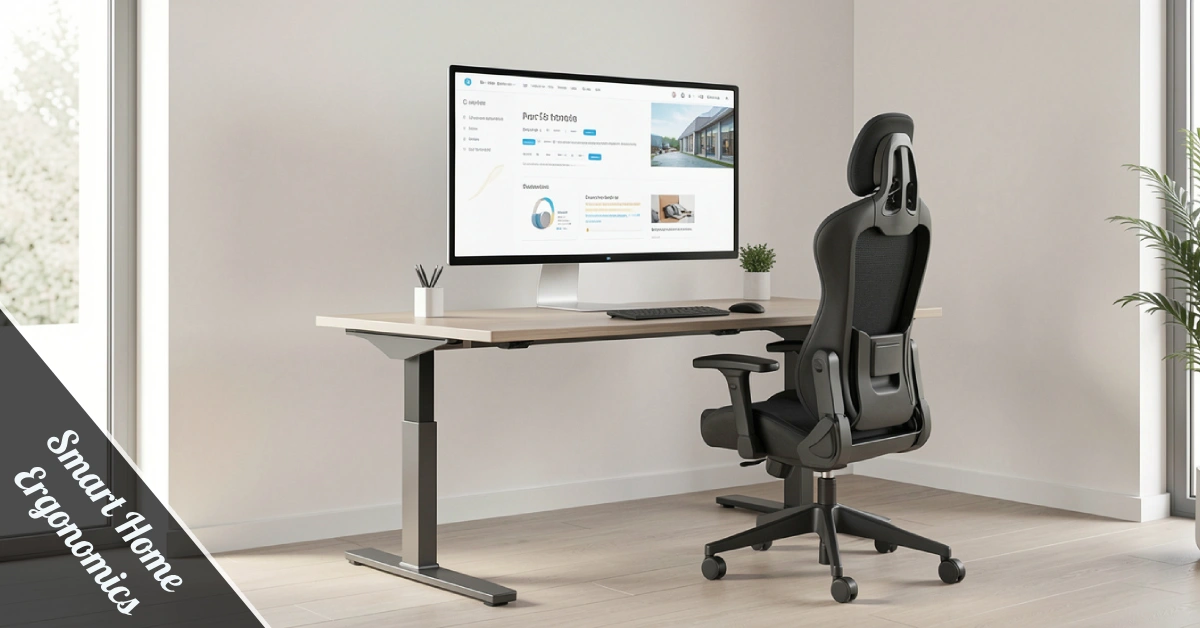
Let’s be real — your back didn’t start hurting because of age. It started hurting because your setup is terrible. Smart Home Ergonomics is the fix you didn’t know you needed, and it’s more accessible than ever. Whether you’re grinding remote work hours or building your dream home office, this guide breaks it all down for you — no corporate jargon, just real talk.
Why Smart Home Ergonomics Actually Matters
Most people ignore their workspace setup until the pain hits. That’s already too late. Poor posture during long work sessions silently damages your spine, neck, and wrists over time.
Here’s the thing — your body isn’t built for eight straight hours of sitting. It’s designed to move, shift, and breathe. A smart ergonomic setup works with your body, not against it.
Smart Home Ergonomics isn’t just a fancy term for a good chair. It’s the full picture — furniture, lighting, tech, and your daily habits working together. When everything aligns, you feel the difference fast.
Remote workers especially need this. Studies show that over 54% of remote workers report back or neck pain as a direct result of poor home office setups. That number is way too high for something completely preventable.
Small changes matter more than you think. Adjusting your monitor by 2 inches, adjusting your chair height, or adding a lumbar cushion can dramatically reduce daily strain. Don’t sleep on the basics.
Setting Up Your Chair Like a Pro
Your chair is the MVP of your workspace. If it is wrong, everything else suffers—no exceptions. Here’s how to dial it in correctly.
First, adjust the height so your knees sit slightly higher than your hips. This posture keeps your lower back naturally aligned and your feet flat on the floor. If your feet dangle, grab a footrest — it’s a cheap fix with serious returns.
Your backrest needs a slight recline. Not full-on reclined like you’re watching Netflix, but around 100–110 degrees. That angle distributes your body weight evenly and takes pressure off your lumbar discs.
If your chair doesn’t have built-in lumbar support, grab a cushion. Your lower back will thank you after hour three of deep work. Brands like Herman Miller and Steelcase build lumbar support directly into their designs — it’s worth the investment.
Monitor Height, Screen Angle & Eye Strain
Eye strain is sneaky. You don’t notice it until the headache arrives at 4 PM. Your monitor placement is usually the culprit behind this daily discomfort.
The top of your screen should sit at or just below eye level. This keeps your neck in a neutral position and stops that classic “forward head posture” creep. Stack some books or grab a monitor riser — whatever works.
Screen angle matters too. Tilt your monitor back about 10–20 degrees toward you. This reduces glare from overhead lighting and keeps your eyes from working all day overtime.
Keep the screen an arm’s length away — roughly 20 to 28 inches from your face. Too close and your eyes are straining; too far and you’re leaning forward like you’re reading fine print. Find the sweet spot and stay there.
Smart displays and adaptive screen brightness tools can automatically adjust to your room’s lighting. That’s one of those Smart Home Ergonomics upgrades that quietly improve your day without you even noticing it.
Keyboard, Mouse & Forearm Positioning
Carpal tunnel isn’t a life sentence — it’s a setup problem. Most wrist injuries from computer use are entirely preventable with the right positioning.
Your elbows should sit at a 90-degree angle, with forearms parallel to the floor while typing. If your desk is too high, a keyboard tray is your best friend. Don’t just push through discomfort thinking it’ll pass.
Keep your mouse close to your keyboard. Reaching out repeatedly — even just a few inches — builds repetitive strain over hours. A compact keyboard without a numpad helps keep everything within a natural reach zone.
Wrist rests look helpful, but can actually cause problems if used while actively typing. Use them only during breaks, not while your fingers are moving. That’s a subtle but important distinction worth remembering.
Smart Lighting: The Overlooked Ergonomic Hack
Lighting is where most home offices completely drop the ball. Harsh overhead bulbs create screen glare and eye fatigue faster than almost anything else in your space.
Smart lighting systems — like Philips Hue or LIFX — let you control color temperature and brightness throughout the day. Cooler light in the morning sharpens focus; warmer tones in the evening signal your brain to wind down naturally.
Position your primary light source to the side of your monitor, not behind or directly above it. This eliminates glare and reduces contrast between your screen and the surrounding environment.
Automated lighting schedules are a core part of modern Smart Home Ergonomics strategies. They reduce eye strain passively — you set it once, and your environment keeps working for you all day.
Smart Furniture That Keeps You Moving
Sitting all day is genuinely bad for you — even with perfect posture. The solution isn’t to stand all day either. It’s to alternate between sitting and standing throughout your workday.
Sit-stand desks are the cheat code here. You can adjust height with an app or a button, alternating positions every 20 to 30 minutes. Your circulation improves, your energy stays steadier, and your back stops screaming by noon.
Smart desks from brands like Flexispot or Uplift come with programmable memory settings. Set your sit height, set your stand height, and switch between them without thinking. Automation makes healthy habits effortless.
Some advanced Smart Home Ergonomics setups include posture sensors built into chairs or desk surfaces. These sensors track your position and send gentle reminders when you start to slouch. Think of it as a silent posture coach living in your chair.
Posture Monitoring With Smart Tech
Technology has gotten surprisingly good at catching bad habits before they become chronic problems. Posture monitoring tools are now affordable, compact, and genuinely useful for daily work.
Wearable devices like Upright GO attach to your upper back and vibrate when you hunch forward. It’s like having someone tap you on the shoulder every time your posture slips — annoying at first, effective fast.
Apps connected to your calendar or smart assistant can remind you to stand, stretch, or take a break every 20 to 30 minutes. Voice commands through Alexa or Google Home make these reminders hands-free and seamless.
Your smartphone habits also affect your posture. Holding your phone against your ear and shoulder is a neck injury waiting to happen. Use a headset or speakerphone — keep your spine straight and your neck relaxed while you work.
Quick-Reference: Smart Home Ergonomics Setup Table
| Element | Ideal Setting | Why It Matters |
|---|---|---|
| Chair Height | Knees slightly above hips | Aligns the lower back naturally |
| Monitor Height | Top of screen at eye level | Prevents forward head posture |
| Monitor Distance | 20–28 inches from face | Reduces eye strain |
| Forearm Position | Parallel to the floor, 90° elbow | Prevents carpal tunnel |
| Lumbar Support | Built-in or cushion | Protects lower back discs |
| Lighting Direction | Side of the monitor | Eliminates screen glare |
| Movement Breaks | Every 20–30 minutes | Improves circulation, reduces fatigue |
| Sit-Stand Desk | Alternate throughout the day | Reduces the risks of prolonged sitting |
Wrapping It Up
Your workspace is either working for you or working against you — there’s no neutral. Smart Home Ergonomics isn’t about spending a fortune overnight. It’s about making smart, intentional upgrades that compound over time.
Start with your chair height and monitor position today — those two alone will make a noticeable difference by tomorrow morning. Then build from there: lighting, keyboard setup, and a sit-stand desk when you’re ready.
The goal isn’t a perfect setup on day one. It’s building a space that protects your body, sharpens your focus, and keeps you going strong for the long haul. Your future self — pain-free and productive — will absolutely appreciate it.